Dieser Beitrag ist auf Englisch geschrieben.
Photo year in review: find it, fix it, send it
Where Google Photos keeps its Recap, what to check if you don't have one, and why the best place for it is a chat with the people who were there.
Von Looper Team Veröffentlicht am

Die kurze Antwort
On Android, Google Photos calls its photo year in review Recap. Open the Photos tab and look at the front of the featured memories carousel. No Recap? Google lists the settings to check: Face Groups on with your face selected, backup on, and the latest app. Then send it to the people who were in it.
If you use Google Photos on Android, your photo year in review is called Recap, and you'll find it at the front of the featured memories carousel at the top of the Photos tab. In its 2025 Recap announcement, Google described it as "turning your photos and videos from the past year into a highlight reel." If yours isn't there, Google lists a few settings to check. And if you'd rather not wait for an app at all, a handful of photos you pick yourself does the same job.
Where to find your Google Photos Recap
These steps come from Google's Android help page for Recap, so they describe Google Photos on an Android phone:
- Open the Google Photos app and sign in.
- Tap Photos at the bottom of the screen.
- Look at the top of Photos view for the featured memories carousel.
- Tap the Memory tile at the front of the carousel. That's where Google says the Recap sits.
If you have notifications turned on, Google Photos sends you one when your Recap is ready, so you don't have to keep checking.
Once you've watched it, it moves. During December, scroll to the back of the memories carousel or look for it pinned in the Collections tab. After the new year, it lives in the photo grid under December, pinned at the top.
Give it time, too. Android Authority reported that a Recap takes about a day to generate.
Has the 2026 Recap come out?
As of November 16, 2026, Google's help page still says the 2025 Recap is at the front of the featured memories carousel, and the page hasn't been updated for 2026. Read the steps above as how it worked last year. The page says nothing yet about when a 2026 version arrives or how it will look.
Why didn't I get a photo year in review?
On Apple Community, one person wrote: "A lot of my friends had their Photo App make them a Year in Review slideshow." Your friends got one, you didn't, and the first thought is that the phone is broken.
For Google Photos, check Google's list before you blame the phone. Google says a full Recap needs:
- enough photos taken throughout the year (Google doesn't give a number)
- Face Groups turned on, with your own face selected
- the latest version of the Google Photos app
- backup turned on for this year's photos and videos
In the US, Google also suggests turning on Gemini features in Photos "for an enhanced experience."
Look on your phone, not your laptop. Google's desktop help page says Recap "isn't available on desktop."
Some of that list is a choice. You might keep Face Groups off on purpose, or you might not want this year backed up to Google. That's a fair call.
Make your own instead
You don't have to organize anything first. Sorting a whole year is the kind of job that never happens; picking a few photos takes a minute.
- Scroll the year in your camera roll and stop only where you actually stop: the blurry dinner, the parking lot where the car wouldn't start, the dog asleep on someone's coat.
- Keep a handful, with a photo of the people at the front and the rest in the order the year happened.
- Skip anything you took to remember a number. Screenshots and receipts don't belong in a memory.
- Send them to the people who were there. In Google Photos, Share, then Send in Photos, puts them in a conversation with the people you pick.
We think ordinary days age better than posed ones, and the slightly bad photo is often the one people remember. If you're on iPhone with Apple Photos, the menus named here won't match, since they come from Google's help pages, but the picking works the same in any camera roll.
Clean up the automatic picks before you share
Software doesn't know which photos you'd rather forget. That has been a complaint for a while: Chrome Unboxed reported that the 2025 Recap became editable after feedback about unwanted memories popping up.
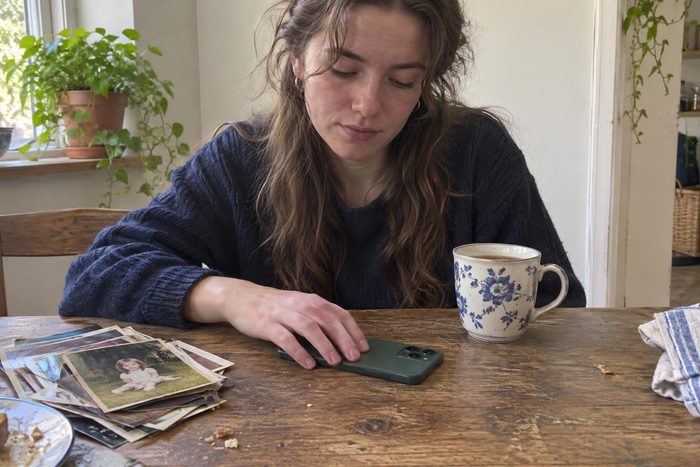
Google's page puts it simply: "You can hide specific people or photos before regenerating the final video." Do it before you sit down to send. Android Authority reported that a regenerated Recap takes about 30 minutes.
What to look for before anyone else sees it:
- a face someone in the group isn't ready to see this year
- screenshots, receipts, boarding passes and anything you photographed only to remember a number (nothing breaks a memory faster)
- the photo you took for work that somehow made the cut
Watch the numbers as well as the photos. Digital Trends reported that the 2025 Recap counted your selfies, "calculated using face detection." Decide whether that's something you want on your aunt's phone.
There's also a CapCut route. Google's page offers editing your Recap in CapCut, which it calls "an independent app operated by ByteDance." You get templates made for Recap, you can select or remove photos before they go to CapCut, and you can choose music from CapCut's library. That's handy if the song is wrong. Just know that you're handing those photos to a separate app run by a different company, and choose what goes over with that in mind.
Send it to the people who were in it
Google gives you a few things to share from a Recap: short clips, collages or the full Recap video. It says the short videos and collages at the end are "ready to be shared on social media or in chats." We'd pick the chat.
A memory belongs to the people who were in it. Posting your year to everyone and sending it to the four people from that camping trip are different acts, and we think the second is the one that gets a reply, because "remember this?" asks for an answer and a public post doesn't.
To send it inside Google Photos, the Google Photos sharing help page gives this path:
- Tap Share.
- Under "Send in Photos," pick the people.
- Tap Send. The photos go into a conversation with those people.
You can also tap Share, then Create link, or Share, then Show QR Code. Google's page is clear about what a link means: "Anyone that has the shared link will be able to view the album." That's fine in a family group chat. Think twice before that link gets pasted somewhere bigger.
Keep it short and pick the song first
You don't need editing skill or a long evening. Looking back should cost a minute. If it needs an afternoon of sorting first, it won't happen, and the photos stay in the camera roll for another year.
We'd keep it short: a recap someone watches twice is worth more than one they close halfway through. More photos make a longer video, and rarely a better one. If you're torn between two shots of the same moment, keep the one with more people in it.
In our view, order matters more than effects. Put the people first, then let the rest run the way the year happened. A face at the start tells everyone why they got it; a transition tells them nothing.
We think the song does half the work. Choose it for that year and for the people you're sending it to: the song from the road trip, the one your kid wouldn't stop singing. A trending track sounds like everyone else's recap.
And let it be rough. A video made for five people can be more honest than one made for a feed. The out of focus photo of everyone laughing at the wrong moment is fine. It's probably the one they'll mention back.
If you'd rather look back in small pieces all year than once in December, Looper is a free memories app for iPhone and Android that turns your photos and videos from this date, 1 to 5 years ago, into a short memory video with music for the people who were there. It comes out this fall on both, with a free TestFlight beta on iPhone now.
Timing yours around the music recaps
If you're after a Spotify Wrapped for photos, it helps to know when Wrapped itself shows up. According to spotifystats.com, Spotify's "Get Ready for Your Spotify Wrapped" post on November 5, 2026 gave tips but no release date. The music stats site mystats.music put it this way: "Spotify hasn't announced the date yet, but its pattern is very consistent." That's a pattern from past years, not a date from Spotify.
Whenever it lands, we think it's a good week to send yours, because people are already in a looking-back mood. Have it ready before then, with the photo you'd show first at the front.
Quellen
- Find your new Google Photos Recap at the end of the year - Android phone & tablet - Google Photos Help, google.com
- Find your new Google Photos Recap at the end of the year - Computer - Google Photos Help, google.com
- Share photos & videos - Android phone & tablet - Google Photos Help, google.com
- Google Photos 2025 Recap, blog.google
- Google Photos 2025 Recap is here with the ability to hide unwanted faces, androidauthority.com
- Your Google Photos 2025 Recap is rolling out now, and this year you can actually edit it, chromeunboxed.com
- Google Photos Recap is here and the 2025 edition has a narcissism meter too, digitaltrends.com
- Spotify Wrapped 2026: Expected Dec 1–3 (Likely Wed, Dec 2), spotifystats.com
- When does Spotify Wrapped 2026 come out, mystats.music
- Year in Review slideshow thread, Apple Community